Maestra Live Help Center
At a glance
- Runs in the browser (Chrome recommended); nothing to install for speakers or audiences
- Integrations: Zoom, Microsoft Teams, Google Meet, OBS Studio, vMix
- Two-way translation and automatic language detection
- Free mode: live captions in the spoken language, no account needed. Translation, dubbing and session sharing are on paid plans
All Maestra Live guides
Getting started and live sessions
- Microphone set-up guide (Mac & Windows) Set up a microphone or audio interface, and fix Chrome detecting a mic that Maestra does not list.
- Live transcription guide Turn live speech into on-screen captions in the original language, and compare Free and Pro transcription.
- Live translation guide Show original and translated captions side by side, including two-way translation for conversations.
- AI dubbing guide Have an AI voice, or a clone of your own voice, speak your translations aloud while captions stay on screen.
- Session sharing guide Share a session by link or QR code so attendees follow captions, translation and dubbing in their own language.
- Caption appearance guide Restyle on-screen captions: font, size, color, alignment, background and per-speaker colors.
- Custom dictionary guide Add names, brands and jargon for better accuracy, and set word replacements that fix mis-heard terms automatically.
- Recordings guide Save a session’s transcript and audio, then play back, export or send it to the Maestra Editor.
- AI summary guide Generate a summary of a saved session with chapters, action items, speaker notes and key topics.
- Speaker detection guide Label each speaker separately in the live transcript with diarization.
- Audio processing guide Choose your microphone and apply echo cancellation, noise suppression and gain control, including mid-session mic changes.
- Other settings guide End sessions automatically after silence and censor profanity in US English transcripts.
Integrations
- Zoom app guide Install the Maestra Live app from the Zoom App Marketplace for captions and translation inside Zoom meetings.
- Zoom closed captions guide Send Maestra captions into Zoom’s closed-caption track with a Zoom caption token.
- Google Meet guide A Maestra captioning bot joins your Google Meet call and everyone reads along from a link in the chat.
- Microsoft Teams guide Add real-time captions and translation to Teams meetings with the side-panel and meeting-tab app.
- OBS Studio guide Show real-time captions on your OBS output and on Twitch, YouTube or any platform you stream to.
- vMix guide Send real-time captions into a vMix title input for broadcast productions, with a troubleshooting checklist.
Live Sessions
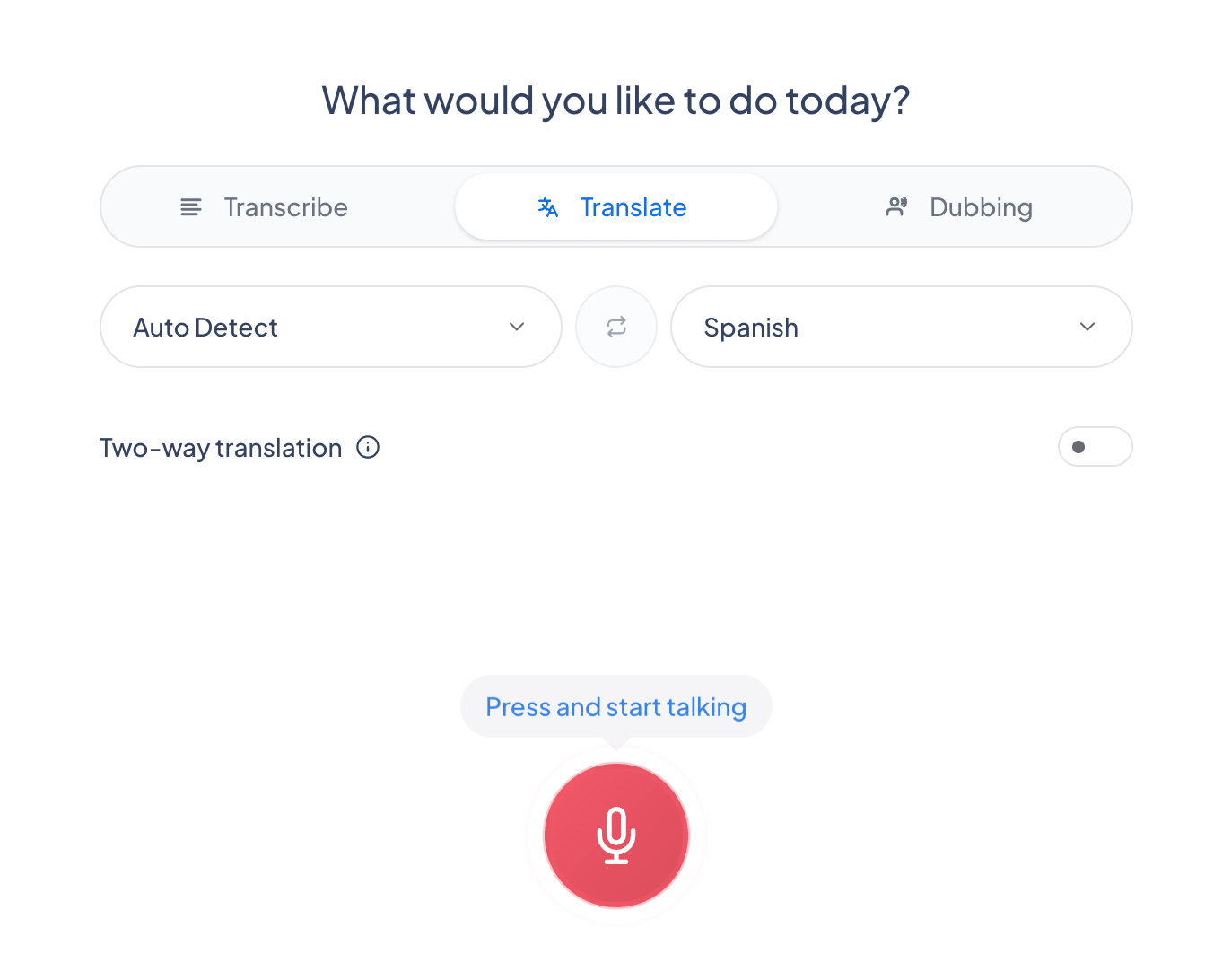
Open the live app on the Transcribe tab, choose the language of the audio, and start capturing to generate a live transcript. Captions appear on screen as the audio goes on.
Open the Translate tab to add translated captions in real time, including a two-way mode where two people each speak their own language and Maestra translates in both directions. Translated and original captions appear side by side.
On the Dubbing tab, pick an AI voice to speak the translation aloud as you talk, or enable voice cloning to regenerate your own voice in the translated language. The voice plays alongside the speaker, with captions shown too.
Session Sharing
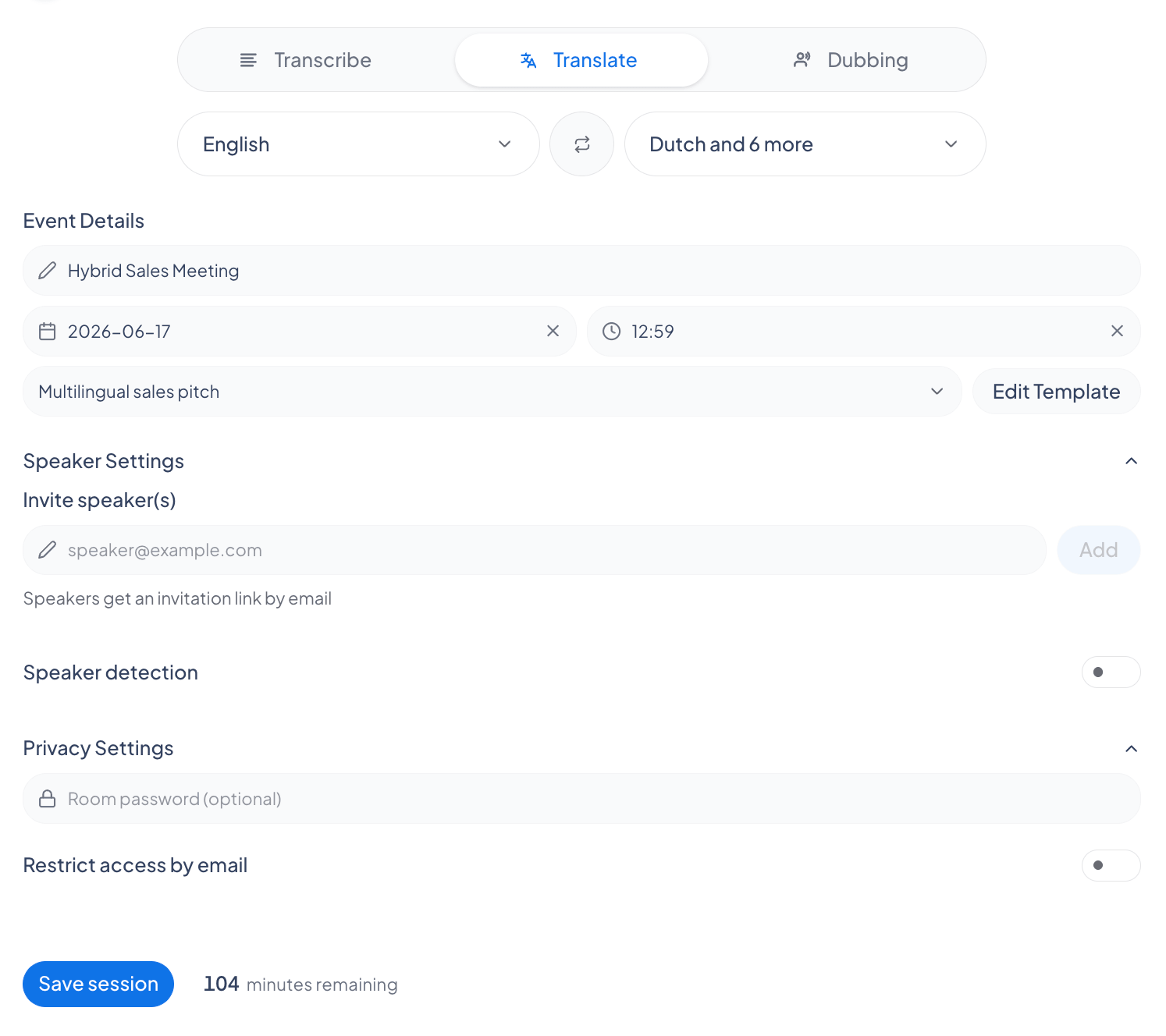
Create a multilingual session and share its link or QR code. Attendees open it in their browser and choose from the languages you enable, without downloading an audience app. Set up sharing with an eligible plan and test the join link before your event.
General Settings
Saving a session
Toggle Save transcript and Save audio under General settings. Once saving is on, sessions are saved automatically to the Recordings tab. Keep them for archiving, or for further editing and translation with Maestra’s AI tools. Saving requires a signed-in account.
General settings also include profanity censoring, automatic speaker detection, audio processing, and AI summaries.
Audio Processing
Audio Processing lets you pick your microphone input and fine-tune capture with echo cancellation, noise suppression, and auto gain control for cleaner transcripts.
AI Summary
AI Summary generates an automatic session summary in your chosen length and language, with options like chapter detection, action-item extraction, per-speaker briefs, and key-topic tagging.
Customization
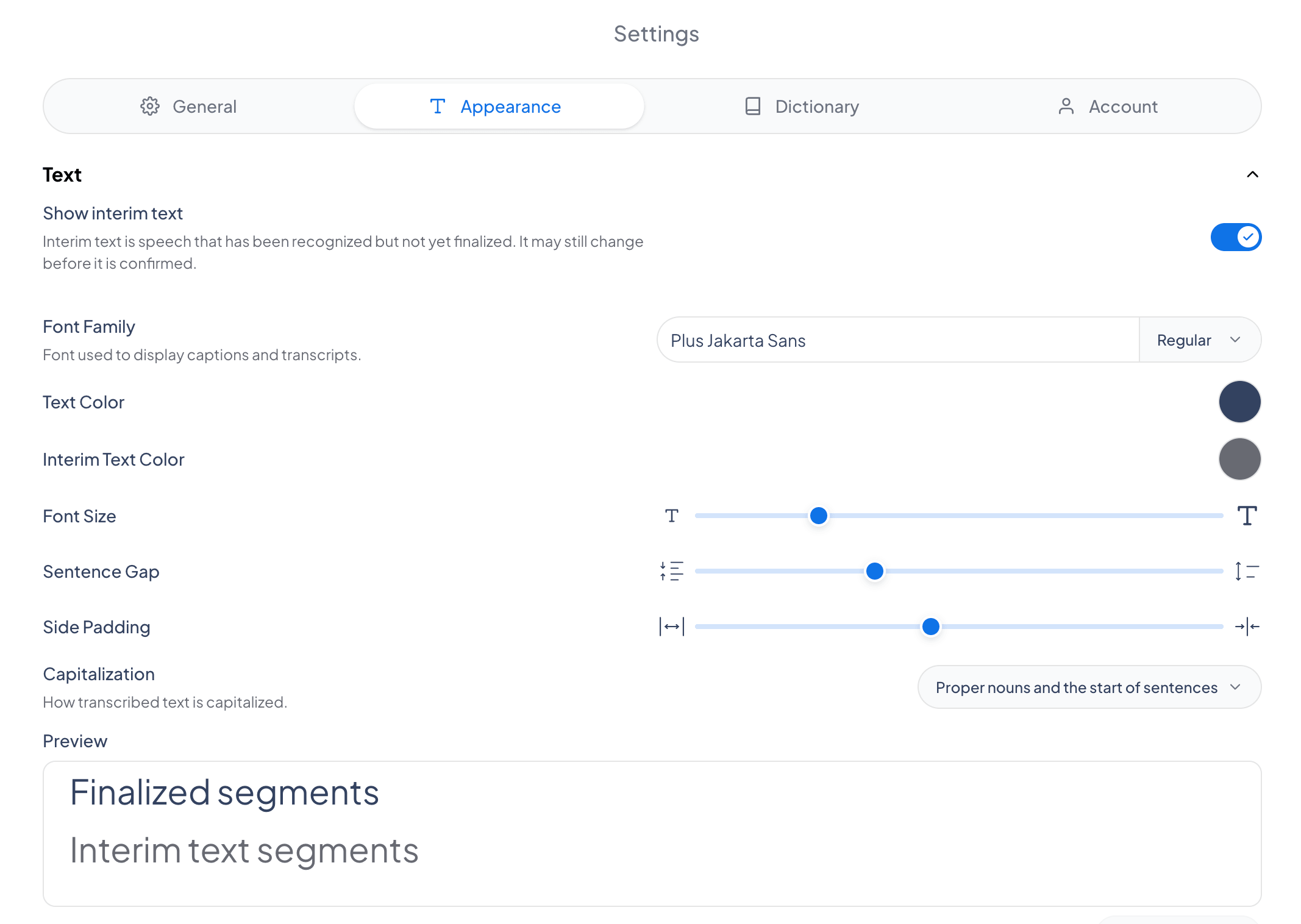
Change the caption font, text color, size, background, and alignment, and more. Tune captions to stay readable in any environment: in-person, virtual, or hybrid.
Integrations
Use the integration guides for Zoom, Microsoft Teams, Google Meet, OBS, and vMix. Each guide explains the connection, required permissions, audio input, and where people see the captions. Spoken output and translated captions are separate capabilities; check the supported output for your setup.
The settings menu also holds options such as word replacements, the language list, and profanity censoring.